Single sign-on (SSO)
Overview
With multiple applications in one organization, enable single sign-on (SSO) so users sign in once and are automatically signed in for other apps in the same org.
To enable SSO:
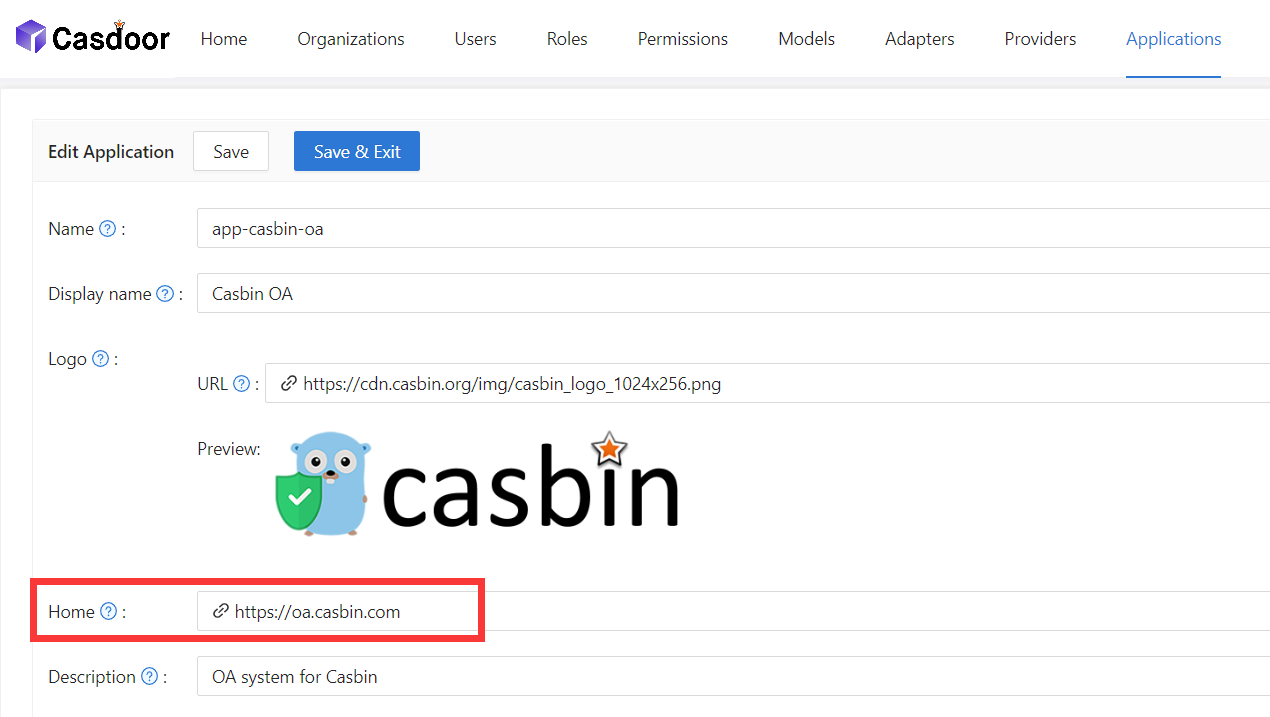
- Set the Home URL (application home or login page).
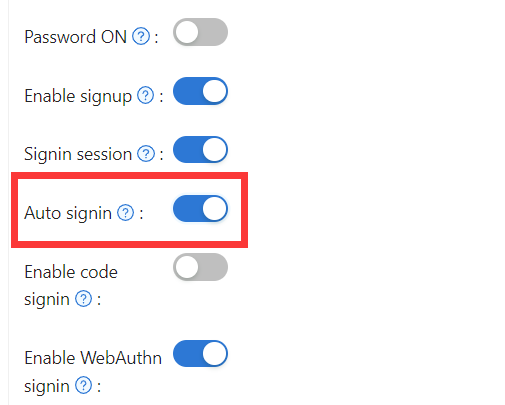
- Enable Auto Sign-In on the application.
- Implement Silent Sign-In on your app’s home page so it can complete login when opened with the SSO link.
Without auto sign-in, users see a picker to choose the current user or another account. With auto sign-in, the already-signed-in user is used and the picker is skipped.
Configuration
- Set Home to your application’s home page or login URL.
 2. Enable Auto Sign-In.
Silent sign-in
SSO works by opening your app’s home URL with a query parameter. Your app must detect that and trigger login. The casdoor-react-sdk provides a SilentSignin component; see use-in-react.
Flow: The link to your home page includes silentSignin=1. On load, if silentSignin === 1, render the SilentSignin component so it starts the login; with auto sign-in enabled, the user is signed in without extra clicks. Silent sign-in only runs when the user’s organization matches the application, avoiding duplicate or wrong sign-ins.
Popup sign-in
Popup sign-in opens a small window for Casdoor login; after success it posts the auth result to the opener and closes. Use popupSignin() from casdoor-js-sdk; demo: casdoor-nodejs-react-example. The home URL is called with popup=1; Casdoor sends code and state to the opener, and the main window exchanges them for a token via the SDK.
Using SSO
The configuration is complete. Below, we will show you how to use auto login.
Make sure your application can redirect to the user's profile page. The getMyProfileUrl(account, returnUrl) API is provided in our SDK for each language.
Open the profile page and go to Home (/). The application list for the organization is shown there. It's worth noting that only users in organizations other than "built-in" can see the application list on the "Home" page. All the global administrators (those in the "built-in" organization) cannot see it.
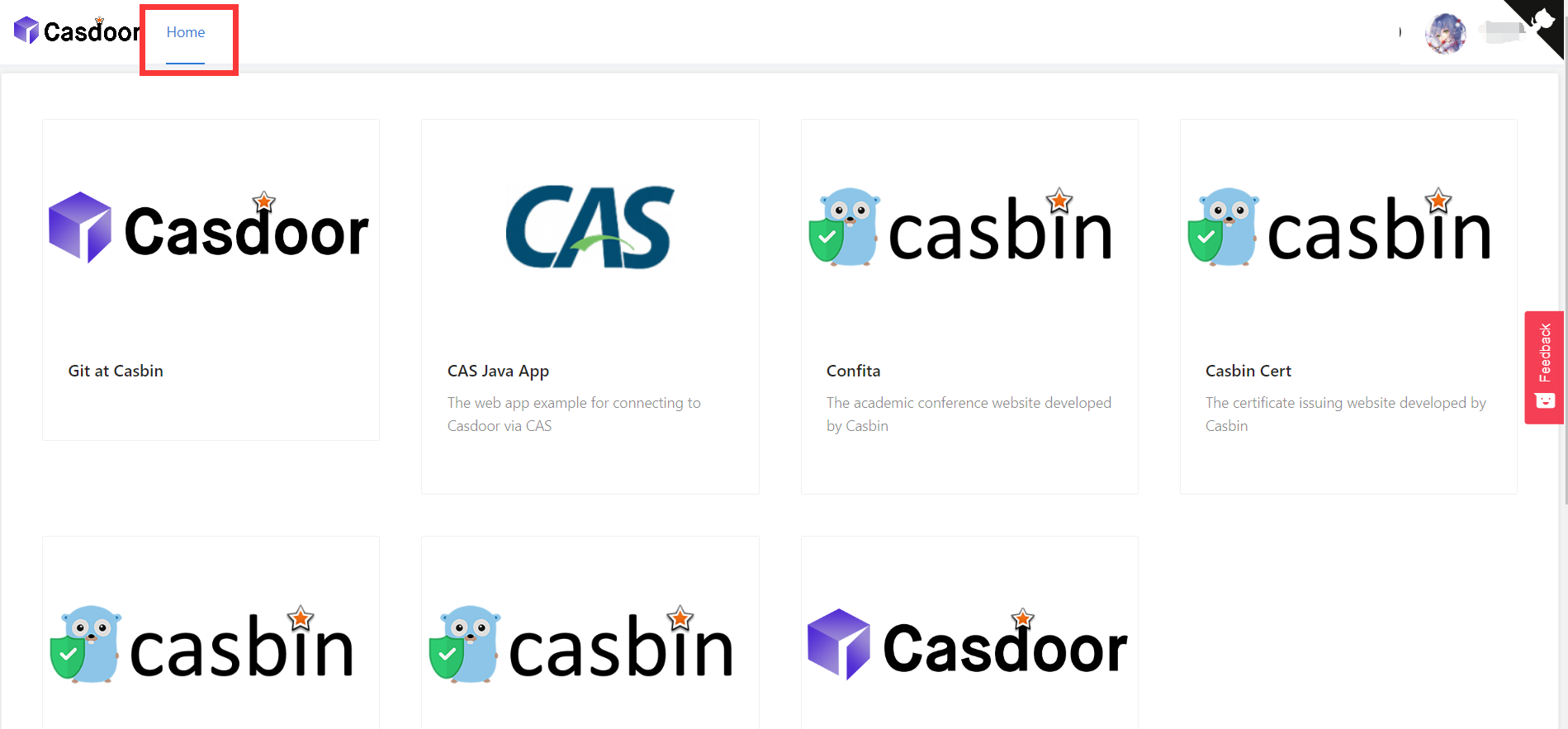
Click on a tile in the application list, and it will jump to the homepage URL of that application with the GET parameter ?silentSignin=1. It will automatically log into the application if the application has integrated with Casdoor SSO (so it will recognize the ?silentSignin=1 parameter and perform a silent login in the background).
SSO Logout
When using SSO, you might need to log a user out from all applications simultaneously. Casdoor provides an SSO logout endpoint that terminates all active sessions and expires all tokens for a user across all applications in the organization.
To implement SSO logout in your application, make a request to the /api/sso-logout endpoint. This endpoint will ensure the user is completely logged out from all integrated applications. For detailed information about the SSO logout API, including authentication methods and request examples, see the Single Sign-Out documentation.