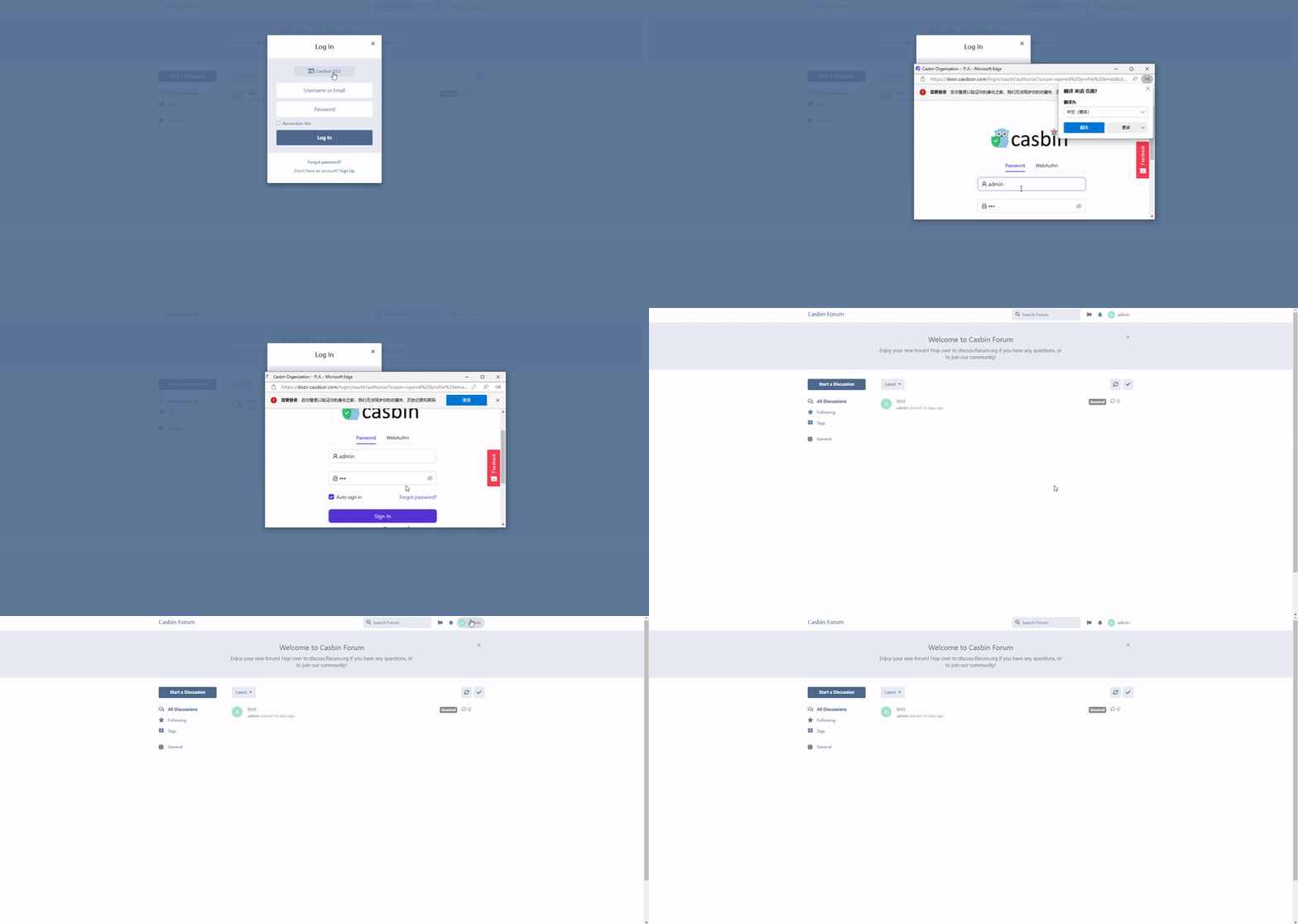
Flarum
Casdoor can use OAuth2 to connect various applications. In this example, we will show you how to use OAuth2 to connect Flarum to your applications.
Note these variables:
CASDOOR_HOSTNAME: The domain name or IP where the Casdoor server is deployed.
Flarum_HOSTNAME: The domain name or IP where Flarum is deployed.
Step 1: Deploy Casdoor and Flarum
First, deploy Casdoor and Flarum.
After a successful deployment, make sure:
- You have downloaded the Flarum plugin FoF Passport.
- Casdoor can be logged in and used normally.
- For local
prodmode, set CASDOOR_HOSTNAME =http://localhost:8000. See production mode.
Step 2: Configure Casdoor application
- Create a new Casdoor application or use an existing one.
- Find the redirect URL:
<CASDOOR_HOSTNAME>/auth/passport. - Add the redirect URL to the Casdoor application:

Note Client ID and Client secret for the next step.
Open http://CASDOOR_HOSTNAME/.well-known/openid-configuration in a browser to view Casdoor's OIDC configuration.
Step 3: Configure Flarum
- Install the plugin FoF Passport.
- Configure the app:
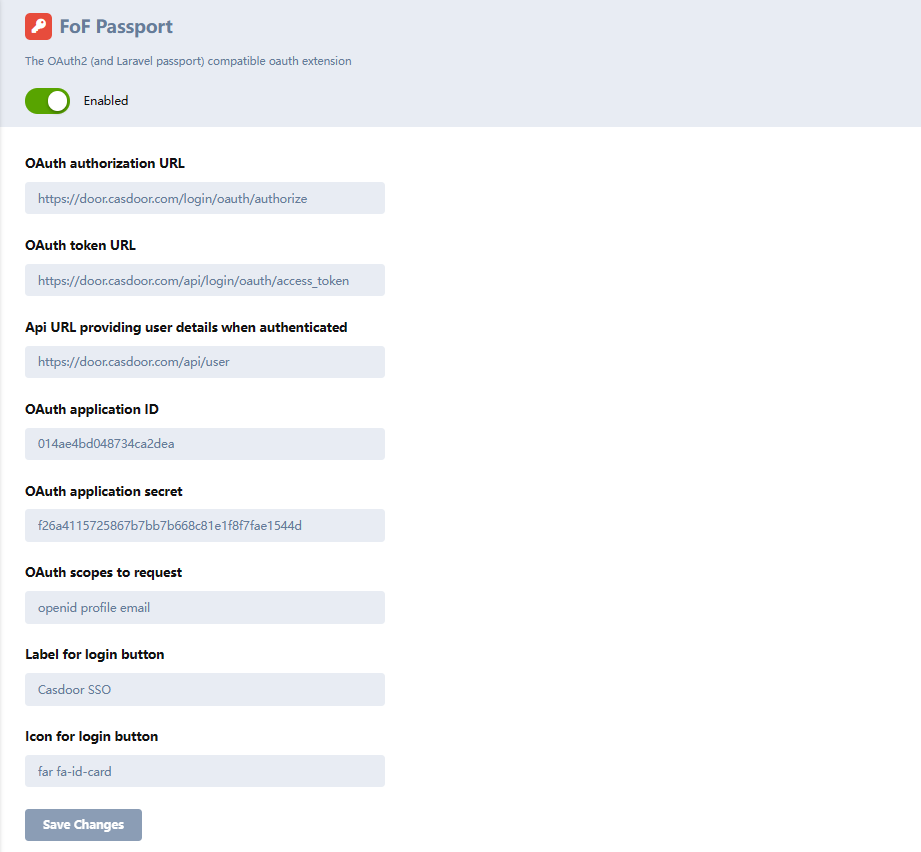
- Find the Client ID and Client Secret in the Casdoor application page.
Token server URL: http://CASDOOR_HOSTNAME/api/login/oauth/access_tokenAuthorization server URL: http://CASDOOR_HOSTNAME/login/oauth/authorizeUserInfo server URL: http://CASDOOR_HOSTNAME/api/get-accountScopes:address phone openid profile offline_access email
Log out of Flarum and test SSO.