Casdoor SDKs
Overview
Casdoor SDKs extend standard OIDC with user management, resource uploads, and other features. They take a bit more setup than a generic OIDC client but give you the full Casdoor API.
Frontend SDKs — For web (JavaScript, React, Vue, etc.) and mobile (Android, iOS, React Native, Flutter).
Backend SDKs — For Go, Java, Node.js, Python, PHP, .NET, Rust, C++, and more.
For a frontend/backend split, use a frontend SDK (e.g. casdoor-js-sdk, casdoor-react-sdk, casdoor-vue-sdk) in the UI and a backend SDK for token validation and API calls. For a traditional server-rendered app (JSP, PHP), a backend SDK may be enough. Example: casdoor-python-vue-sdk-example.
| Mobile SDK | Description | SDK code | Example code |
|---|---|---|---|
| Android SDK | For Android apps | casdoor-android-sdk | casdoor-android-example |
| iOS SDK | For iOS apps | casdoor-ios-sdk | casdoor-ios-example |
| React Native SDK | For React Native apps | casdoor-react-native-sdk | casdoor-react-native-example |
| Flutter SDK | For Flutter apps | casdoor-flutter-sdk | casdoor-flutter-example |
| Firebase SDK | For Google Firebase apps | casdoor-firebase-example | |
| Unity Games SDK | For Unity 2D/3D PC/Mobile games | casdoor-dotnet-sdk | casdoor-unity-example |
| uni-app SDK | For uni-app apps | casdoor-uniapp-sdk | casdoor-uniapp-example |
| Desktop SDK | Description | SDK code | Example code |
|---|---|---|---|
| Electron SDK | For Electron apps | casdoor-js-sdk | casdoor-electron-example |
| .NET Desktop SDK | For .NET desktop apps | casdoor-dotnet-sdk | WPF: casdoor-dotnet-desktop-example WinForms: casdoor-dotnet-winform-example Avalonia UI: casdoor-dotnet-avalonia-example |
| C/C++ SDK | For C/C++ desktop apps | casdoor-cpp-sdk | casdoor-cpp-qt-example |
| Web frontend SDK | Description | SDK code | Example code |
|---|---|---|---|
| Javascript SDK | For traditional non-SPA websites | casdoor-js-sdk | Nodejs backend: casdoor-raw-js-example Go backend: casdoor-go-react-sdk-example |
| Frontend-only SDK | For frontend-only SPA websites | casdoor-js-sdk | casdoor-react-only-example |
| React SDK | For React websites | casdoor-react-sdk | Nodejs backend: casdoor-nodejs-react-example Java backend: casdoor-spring-security-react-example |
| Next.js SDK | For Next.js websites | nextjs-auth | |
| Nuxt SDK | For Nuxt websites | nuxt-auth | |
| Vue SDK | For Vue websites | casdoor-vue-sdk | casdoor-python-vue-sdk-example |
| Angular SDK | For Angular websites | casdoor-angular-sdk | casdoor-nodejs-angular-example |
| Flutter SDK | For Flutter Web websites | casdoor-flutter-sdk | casdoor-flutter-example |
| ASP.NET SDK | For ASP.NET Blazor WASM websites | Blazor.BFF.OpenIDConnect.Template | casdoor-dotnet-blazorwasm-oidc-example |
| Firebase SDK | For Google Firebase apps | casdoor-firebase-example |
Pair the frontend with a backend SDK in your server’s language:
| Web backend SDK | Description | Sdk code | Example code |
|---|---|---|---|
| Go SDK | For Go backends | casdoor-go-sdk | casdoor-go-react-sdk-example |
| Java SDK | For Java backends | casdoor-java-sdk | casdoor-spring-boot-starter, casdoor-spring-boot-example, casdoor-spring-security-react-example |
| Node.js SDK | For Node.js backends | casdoor-nodejs-sdk | casdoor-nodejs-react-example |
| Python SDK | For Python backends | casdoor-python-sdk | Flask: casdoor-python-vue-sdk-example Django: casdoor-django-js-sdk-example FastAPI: casdoor-fastapi-js-sdk-example |
| PHP SDK | For PHP backends | casdoor-php-sdk | wordpress-casdoor-plugin |
| .NET SDK | For ASP.NET backends | casdoor-dotnet-sdk | casdoor-dotnet-sdk-example |
| Rust SDK | For Rust backends | casdoor-rust-sdk | casdoor-rust-example |
| C/C++ SDK | For C/C++ backends | casdoor-cpp-sdk | casdoor-cpp-qt-example |
| Dart SDK | For Dart backends | casdoor-dart-sdk | |
| Ruby SDK | For Ruby backends | casdoor-ruby-sdk |
All official SDKs: https://github.com/orgs/casdoor/repositories?q=sdk&type=all&language=&sort=.
Using the SDK
1. Backend SDK configuration
On startup, call the SDK’s init function with your Casdoor endpoint, client ID, client secret, and (for JWT validation) the public key. Example with casdoor-go-sdk: https://github.com/casbin/casnode/blob/6d4c55f5c9a3c4bd8c85f2493abad3553b9c7ac0/controllers/account.go#L51-L64
var CasdoorEndpoint = "https://door.casdoor.com"
var ClientId = "541738959670d221d59d"
var ClientSecret = "66863369a64a5863827cf949bab70ed560ba24bf"
var CasdoorOrganization = "casbin"
var CasdoorApplication = "app-casnode"

//go:embed token_jwt_key.pem
var JwtPublicKey string

func init() {
    auth.InitConfig(CasdoorEndpoint, ClientId, ClientSecret, JwtPublicKey, CasdoorOrganization, CasdoorApplication)
}
All the parameters for InitConfig() are explained as follows:
| Parameter | Must | Description |
|---|---|---|
| endpoint | Yes | Casdoor Server URL, like https://door.casdoor.com or http://localhost:8000 |
| clientId | Yes | Client ID for the Casdoor application |
| clientSecret | Yes | Client secret for the Casdoor application |
| jwtPublicKey | Yes | The public key for the Casdoor application's cert |
| organizationName | Yes | The name for the Casdoor organization |
| applicationName | No | The name for the Casdoor application |
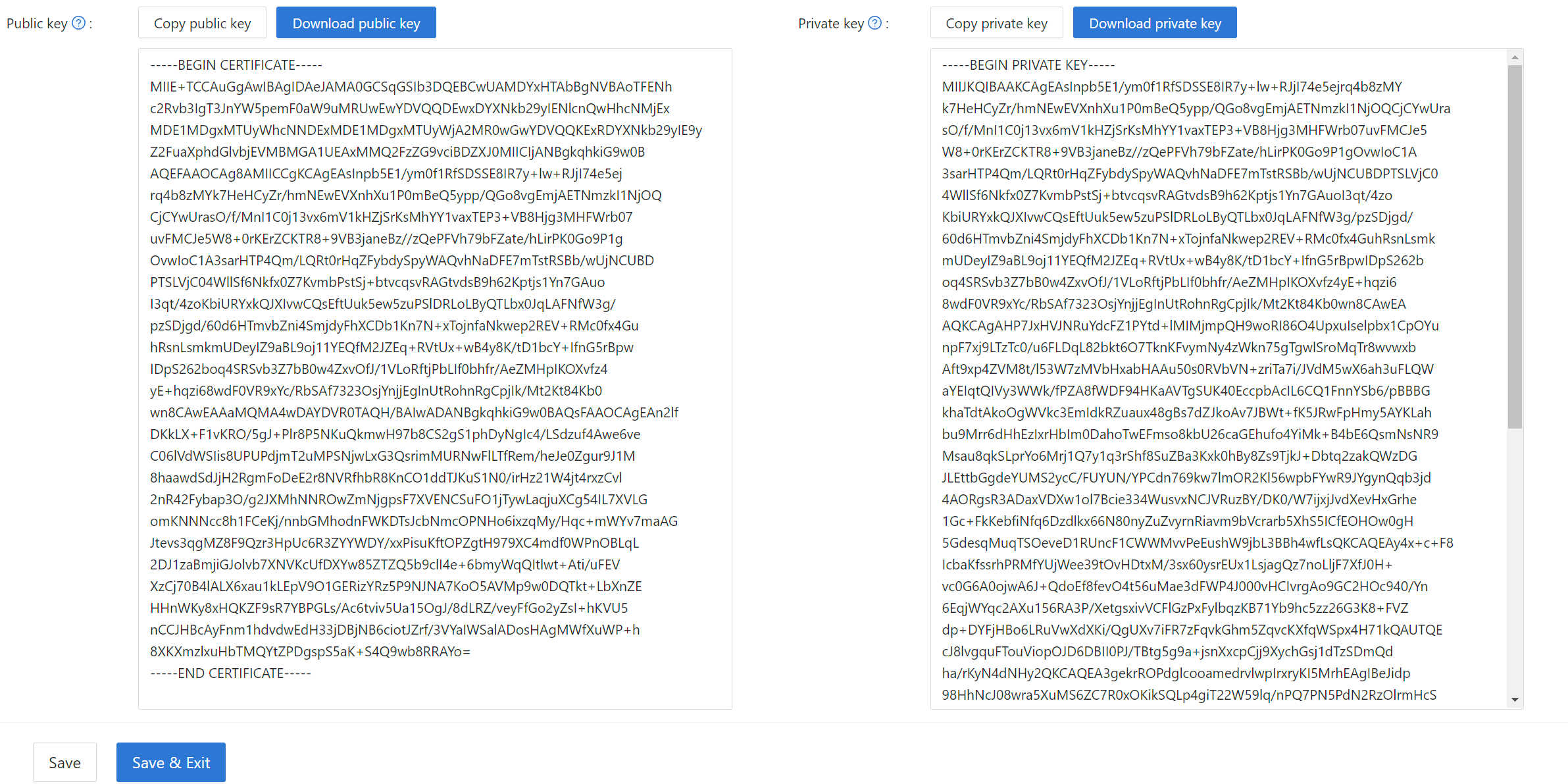
The jwtPublicKey can be managed in the Certs page as below.

Copy or download the public key from the certificate edit page for use in the SDK.
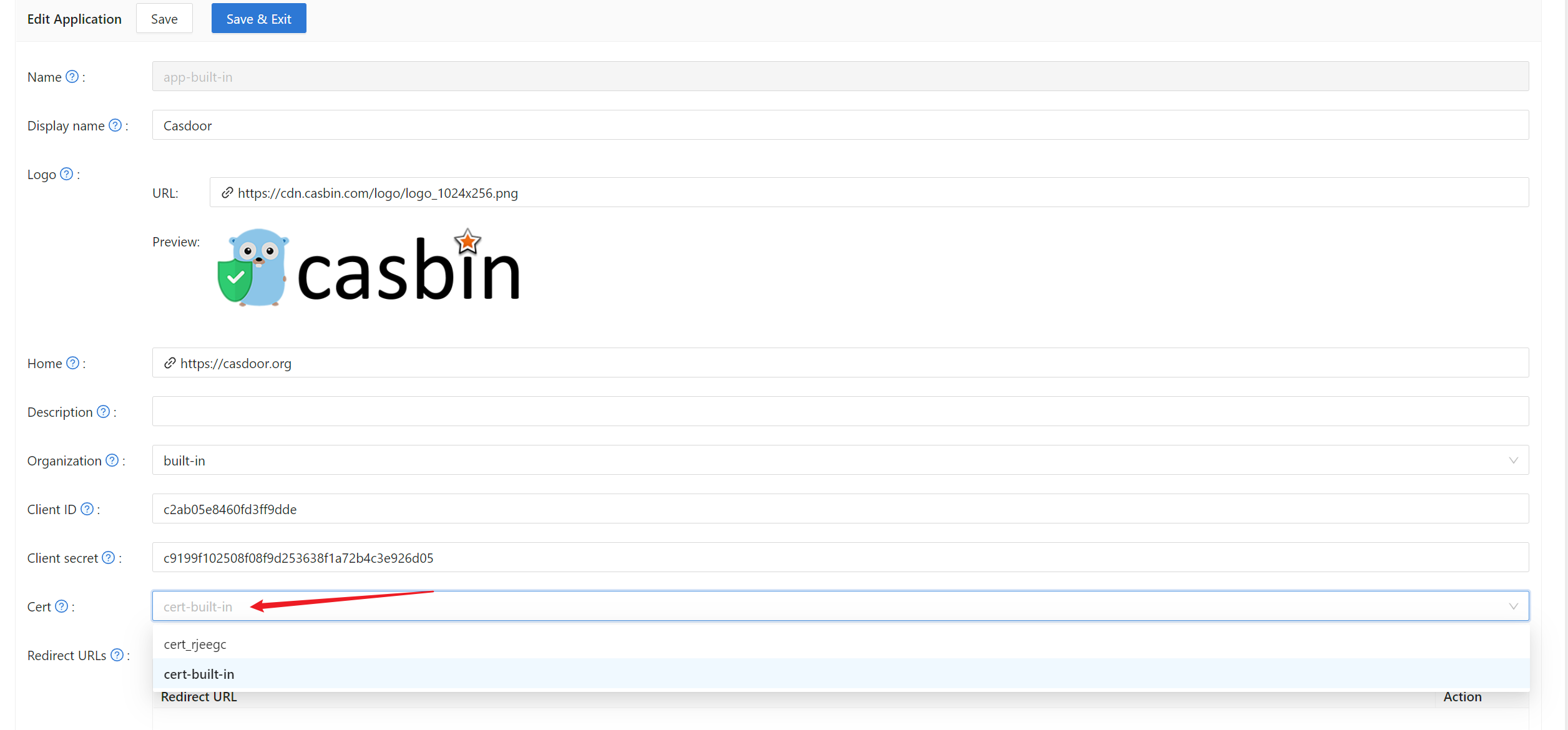
Then select the cert on the application edit page.
2. Frontend configuration
First, install casdoor-js-sdk via NPM or Yarn:
npm install casdoor-js-sdk
Or:
yarn add casdoor-js-sdk
Then define the following utility functions (better in a global JS file like Setting.js):
import Sdk from "casdoor-js-sdk";

export function initCasdoorSdk(config) {
  CasdoorSdk = new Sdk(config);
}

export function getSignupUrl() {
  return CasdoorSdk.getSignupUrl();
}

export function getSigninUrl() {
  return CasdoorSdk.getSigninUrl();
}

export function getUserProfileUrl(userName, account) {
  return CasdoorSdk.getUserProfileUrl(userName, account);
}

export function getMyProfileUrl(account) {
  return CasdoorSdk.getMyProfileUrl(account);
}

export function getMyResourcesUrl(account) {
  return CasdoorSdk.getMyProfileUrl(account).replace("/account?", "/resources?");
}

export function signin() {
  return CasdoorSdk.signin(ServerUrl);
}

export function showMessage(type, text) {
  if (type === "") {
    return;
  } else if (type === "success") {
    message.success(text);
  } else if (type === "error") {
    message.error(text);
  }
}

export function goToLink(link) {
  window.location.href = link;
}
In your frontend entry file (e.g. index.js or app.js in React), initialize the casdoor-js-sdk by calling InitConfig() with the required parameters. The first 4 parameters should use the same value as the Casdoor backend SDK. The last parameter redirectPath is relative path for the redirected URL, returned from Casdoor's login page.
const config = {
  serverUrl: "https://door.casdoor.com",
  clientId: "014ae4bd048734ca2dea",
  organizationName: "casbin",
  appName: "app-casnode",
  redirectPath: "/callback",
};

xxx.initCasdoorSdk(config);
(Optional) This example uses React; the /callback route is handled by the component below, which forwards the call to the backend. Skip this if your callback goes directly to the backend (e.g. JSP or PHP).
import React from "react";
import {Button, Result, Spin} from "antd";
import {withRouter} from "react-router-dom";
import * as Setting from "./Setting";

class AuthCallback extends React.Component {
  constructor(props) {
    super(props);
    this.state = {
      classes: props,
      msg: null,
    };
  }

  componentWillMount() {
    this.login();
  }

  login() {
    Setting.signin().then((res) => {
      if (res.status === "ok") {
        Setting.showMessage("success", `Logged in successfully`);
        Setting.goToLink("/");
      } else {
        this.setState({
          msg: res.msg,
        });
      }
    });
  }

  render() {
    return (
      <div style={{textAlign: "center"}}>
        {this.state.msg === null ? (
          <Spin
            size="large"
            tip="Signing in..."
            style={{paddingTop: "10%"}}
          />
        ) : (
          <div style={{display: "inline"}}>
            <Result
              status="error"
              title="Login Error"
              subTitle={this.state.msg}
              extra={[
                <Button type="primary" key="details">
                  Details
                </Button>,
                <Button key="help">Help</Button>,
              ]}
            />
          </div>
        )}
      </div>
    );
  }
}

export default withRouter(AuthCallback);
3. Get login URLs
Show "Sign up" and "Sign in" buttons or links to users; URLs can be obtained from the frontend or backend. See Login URLs.
4. Get and verify access token
Here are the steps:
- The user clicks the login URL and is redirected to Casdoor's login page,
like:
https://door.casdoor.com/login/oauth/authorize?client_id=014ae4bd048734ca2dea&response_type=code&redirect_uri=https%3A%2F%2Fforum.casbin.com%2Fcallback&scope=read&state=app-casnode - The user enters username & password and clicks
Sign In(or just click the third-party login button likeSign in with GitHub). - The user is redirected back to your application with the authorization code issued by Casdoor (
like:
https://forum.casbin.com?code=xxx&state=yyy), your application's backend needs to exchange the authorization code with the access token and verify that the access token is valid and issued by Casdoor. The functionsGetOAuthToken()andParseJwtToken()are provided by Casdoor backend SDK.
The following code shows how to get and verify the access token. For a real example of Casnode (a forum website written in Go), see: https://github.com/casbin/casnode/blob/6d4c55f5c9a3c4bd8c85f2493abad3553b9c7ac0/controllers/account.go#L51-L64
// get code and state from the GET parameters of the redirected URL
code := c.Input().Get("code")
state := c.Input().Get("state")

// exchange the access token with code and state
token, err := auth.GetOAuthToken(code, state)
if err != nil {
    panic(err)
}

// verify the access token
claims, err := auth.ParseJwtToken(token.AccessToken)
if err != nil {
    panic(err)
}
If ParseJwtToken() finishes with no error, then the user has successfully logged into the application. The
returned claims can be used to identity the user later.
4. Identify user with access token
This part is actually your application's own business logic and not part of OIDC, OAuth or Casdoor. We just provide good practices as a lot of people don't know what to do for the next step.
In Casdoor, access token is usually identical as ID token. They are the same thing. So the access token contains all information for the logged-in user.
The variable claims returned by ParseJwtToken() is defined as:
type Claims struct {
    User
    AccessToken string `json:"accessToken"`
    jwt.RegisteredClaims
}
User: the User object, containing all information for the logged-in user, see definition at: /docs/basic/core-concepts#userAccessToken: the access token string.jwt.RegisteredClaims: some other values required by JWT.
At this moment, the application usually has two ways to remember the user session: session and JWT.
Session
The Method to set session varies greatly depending on the language and web framework. E.g., Casnode
uses Beego web framework and set session by calling: c.SetSessionUser().
token, err := auth.GetOAuthToken(code, state)
if err != nil {
    panic(err)
}

claims, err := auth.ParseJwtToken(token.AccessToken)
if err != nil {
    panic(err)
}

claims.AccessToken = token.AccessToken
c.SetSessionUser(claims) // set session
JWT
The accessToken returned by Casdoor is actually a JWT. So if your application uses JWT to keep user session, just use the access token directly for it:
- Send the access token to frontend, save it in places like localStorage of the browser.
- Let the browser send the access token to backend for every request.
- Call
ParseJwtToken()or your own function to verify the access token and get logged-in user information in your backend.
5. (Optional) Interact with the User table
This part is provided by Casdoor Public API and not part of the OIDC or OAuth.
Casdoor Backend SDK provides a lot of helper functions, not limited to:
GetUser(name string): get a user by username.GetUsers(): get all users.AddUser(): add a user.UpdateUser(): update a user.DeleteUser(): delete a user.CheckUserPassword(auth.User): check user's password.
These functions are implemented by making RESTful calls against Casdoor Public API. If a function is not in the Casdoor Backend SDK, call the Public API directly.
6. (Optional) Manage Applications via SDK
Casdoor SDKs also provide functions to manage applications programmatically:
AddApplication(): create a new application.GetApplication(name string): get an application by name.GetApplications(): get all applications.UpdateApplication(): update an application.DeleteApplication(): delete an application.
When creating applications via SDK using AddApplication(), Casdoor automatically initializes essential fields with sensible defaults. This includes signup items (ID, Username, Display name, Password, Confirm password, Email, Phone, Agreement), signin items, and signin methods. This ensures applications created programmatically work correctly in the UI without requiring manual configuration of these basic settings.