Traefik
Use Traefik with the traefik-casdoor-auth middleware to protect routes with Casdoor authentication and SSO.
Prerequisites
- Traefik v2.x or v3.x installed and running
- A Casdoor instance deployed and accessible
- Docker and Docker Compose (if using the containerized approach)
Step 1: Deploy Casdoor
Deploy Casdoor if needed. Then confirm:
- The Casdoor server is running and accessible
- You can log in to the Casdoor admin interface
- Test the login functionality by entering
adminand123
Step 2: Configure the Casdoor application
-
Create or edit a Casdoor application.
-
Add a redirect URL in the form:
http://<your-domain>/callbackFor example:
http://localhost:8080/callback -
Note down the following values from your application settings:
- Client ID
- Client Secret
- Organization Name
- Application Name
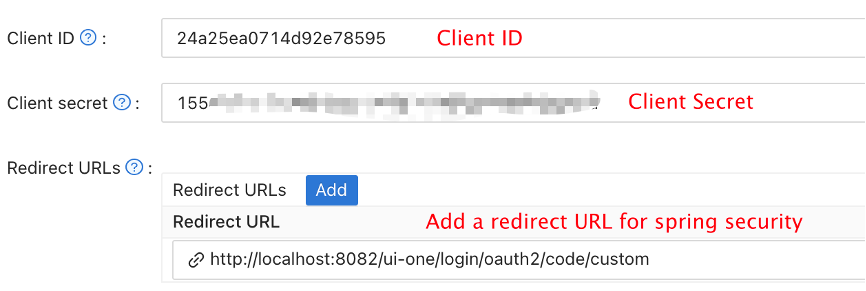
- Configure your application to use the appropriate authentication providers as needed.
Step 3: Deploy traefik-casdoor-auth Middleware
There are two ways to deploy the Traefik Casdoor Auth middleware:
Option 1: Using Docker Compose (Recommended)
Create a docker-compose.yml file:
version: '3'

services:
  traefik:
    image: traefik:v2.10
    container_name: traefik
    restart: unless-stopped
    command:
      - "--api.insecure=true"
      - "--providers.docker=true"
      - "--providers.docker.exposedbydefault=false"
      - "--entrypoints.web.address=:80"
    ports:
      - "80:80"
      - "8080:8080"
    volumes:
      - /var/run/docker.sock:/var/run/docker.sock:ro
    networks:
      - traefik-network

  casdoor-auth:
    image: casbin/traefik-casdoor-auth:latest
    container_name: casdoor-auth
    restart: unless-stopped
    environment:
      - CASDOOR_ENDPOINT=http://localhost:8000
      - CLIENT_ID=<your-client-id>
      - CLIENT_SECRET=<your-client-secret>
      - CASDOOR_ORGANIZATION=<your-organization>
      - CASDOOR_APPLICATION=<your-application>
      - CALLBACK_URL=http://localhost/callback
    labels:
      - "traefik.enable=true"
      - "traefik.http.middlewares.casdoor-auth.forwardauth.address=http://casdoor-auth:8080/verify"
      - "traefik.http.middlewares.casdoor-auth.forwardauth.authResponseHeaders=X-Forwarded-User"
    networks:
      - traefik-network

  # Example protected service
  whoami:
    image: traefik/whoami
    container_name: whoami
    labels:
      - "traefik.enable=true"
      - "traefik.http.routers.whoami.rule=Host(`localhost`)"
      - "traefik.http.routers.whoami.entrypoints=web"
      - "traefik.http.routers.whoami.middlewares=casdoor-auth@docker"
    networks:
      - traefik-network

networks:
  traefik-network:
    driver: bridge
Replace the placeholder values:
<your-client-id>: Your Casdoor application client ID<your-client-secret>: Your Casdoor application client secret<your-organization>: Your Casdoor organization name<your-application>: Your Casdoor application name
Start the services:
docker-compose up -d
Option 2: Using Binary Deployment
-
Download the latest release from the traefik-casdoor-auth releases page.
-
Create a configuration file
config.yaml:
casdoor:
  endpoint: "http://localhost:8000"
  clientId: "<your-client-id>"
  clientSecret: "<your-client-secret>"
  organizationName: "<your-organization>"
  applicationName: "<your-application>"

server:
  port: 8080
  callbackUrl: "http://localhost/callback"
- Run the middleware:
./traefik-casdoor-auth --config config.yaml
- Configure Traefik to use the middleware. Add to your Traefik dynamic configuration:
http:
  middlewares:
    casdoor-auth:
      forwardAuth:
        address: "http://localhost:8080/verify"
        authResponseHeaders:
          - "X-Forwarded-User"

  routers:
    my-protected-service:
      rule: "Host(`example.com`)"
      middlewares:
        - casdoor-auth
      service: my-service
Step 4: Test the Integration
-
Access your protected service through Traefik (e.g.,
http://localhostif using the Docker Compose example). -
You should be redirected to the Casdoor login page.
-
Log in with your Casdoor credentials.
-
After successful authentication, you will be redirected back to your protected service.
-
The middleware will set the
X-Forwarded-Userheader with the authenticated user's information, which your backend service can use.
Configuration Options
The traefik-casdoor-auth middleware supports the following environment variables:
| Variable | Description | Required |
|---|---|---|
CASDOOR_ENDPOINT | URL of your Casdoor instance | Yes |
CLIENT_ID | Casdoor application client ID | Yes |
CLIENT_SECRET | Casdoor application client secret | Yes |
CASDOOR_ORGANIZATION | Casdoor organization name | Yes |
CASDOOR_APPLICATION | Casdoor application name | Yes |
CALLBACK_URL | OAuth callback URL | Yes |
JWT_SECRET | Secret for JWT token signing (auto-generated if not set) | No |
SESSION_TIMEOUT | Session timeout in seconds (default: 3600) | No |
LOG_LEVEL | Logging level: debug, info, warn, error (default: info) | No |
Advanced Configuration
Using HTTPS
For production deployments, it's recommended to use HTTPS. Update your Traefik configuration to include TLS:
services:
  traefik:
    command:
      - "--entrypoints.web.address=:80"
      - "--entrypoints.websecure.address=:443"
      - "--certificatesresolvers.myresolver.acme.tlschallenge=true"
      - "--certificatesresolvers.myresolver.acme.email=your-email@example.com"
      - "--certificatesresolvers.myresolver.acme.storage=/letsencrypt/acme.json"
    ports:
      - "80:80"
      - "443:443"
    volumes:
      - ./letsencrypt:/letsencrypt
And update your service router configuration:
labels:
  - "traefik.http.routers.whoami.entrypoints=websecure"
  - "traefik.http.routers.whoami.tls.certresolver=myresolver"
Customizing Session Behavior
You can customize session timeout and other behaviors:
environment:
  - SESSION_TIMEOUT=7200  # 2 hours
  - LOG_LEVEL=debug
Troubleshooting
Redirect Loop
If you experience a redirect loop:
- Verify that the
CALLBACK_URLmatches the redirect URL configured in your Casdoor application. - Check that cookies are enabled in your browser.
- Ensure the middleware can reach the Casdoor endpoint.
Authentication Fails
If authentication fails:
- Check that the
CLIENT_IDandCLIENT_SECRETare correct. - Verify that the Casdoor organization and application names are correct.
- Check the middleware logs for detailed error messages:
docker logs casdoor-auth
502 Bad Gateway
If you see a 502 error:
- Ensure the casdoor-auth service is running:
docker ps - Check that all services are on the same Docker network.
- Verify the ForwardAuth address is correct in the Traefik configuration.