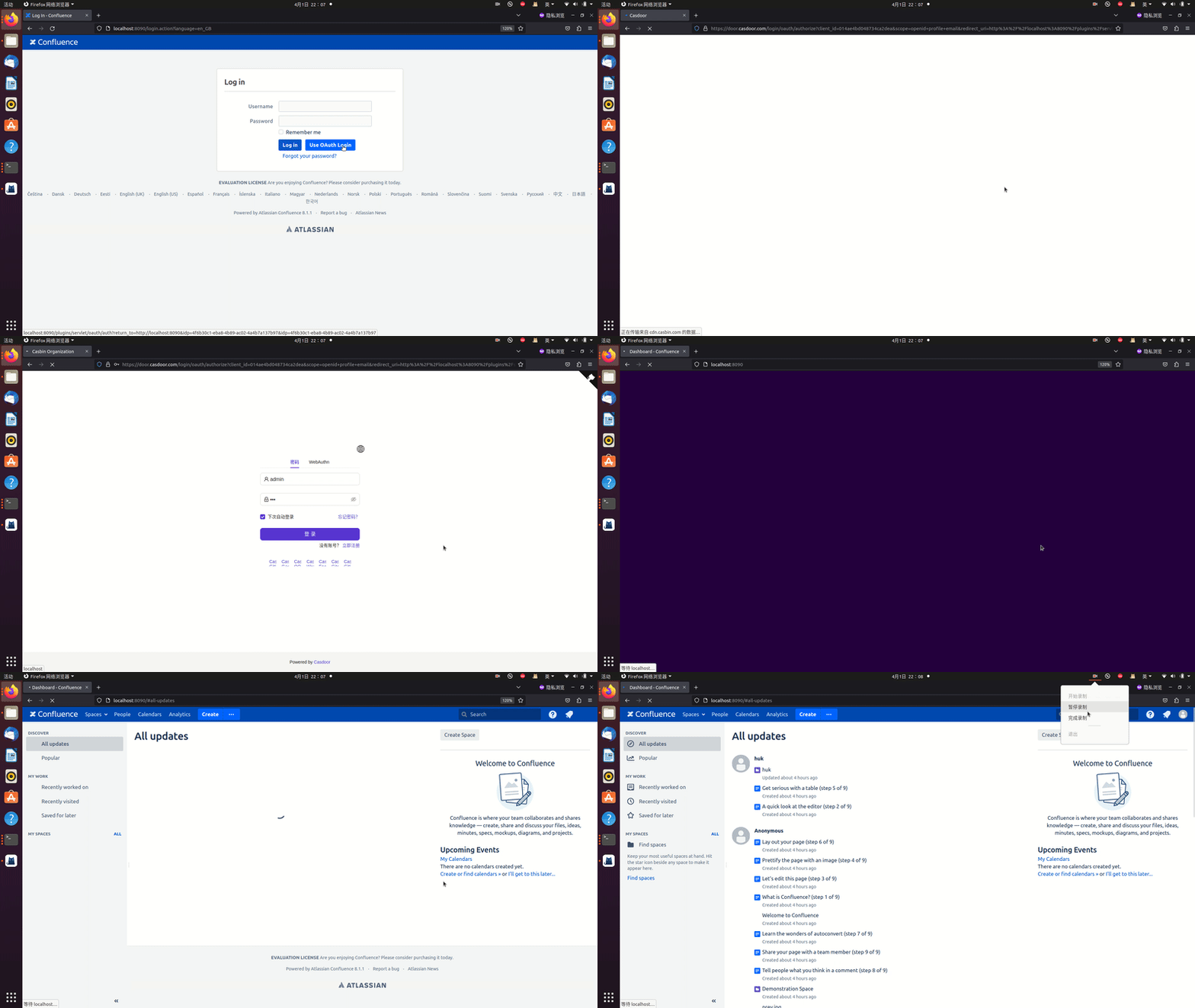
Connecting applications with OIDC protocol - Confluence
Casdoor can use OIDC protocol as an IDP to connect various applications. In this guide, we will use Confluence as an example to demonstrate how to use OIDC to connect your applications.
Deploy Casdoor and Confluence. Note these variables:
CASDOOR_HOSTNAME: Domain name or IP where Casdoor server is deployed.Confluence_HOSTNAME: Domain name or IP where Confluence is deployed.
Step 1: Deploy Casdoor and Confluence
First, deploy Casdoor and Confluence.
After successful deployment, ensure the following:
- Set Confluence URL to
Confluence_HOSTNAME.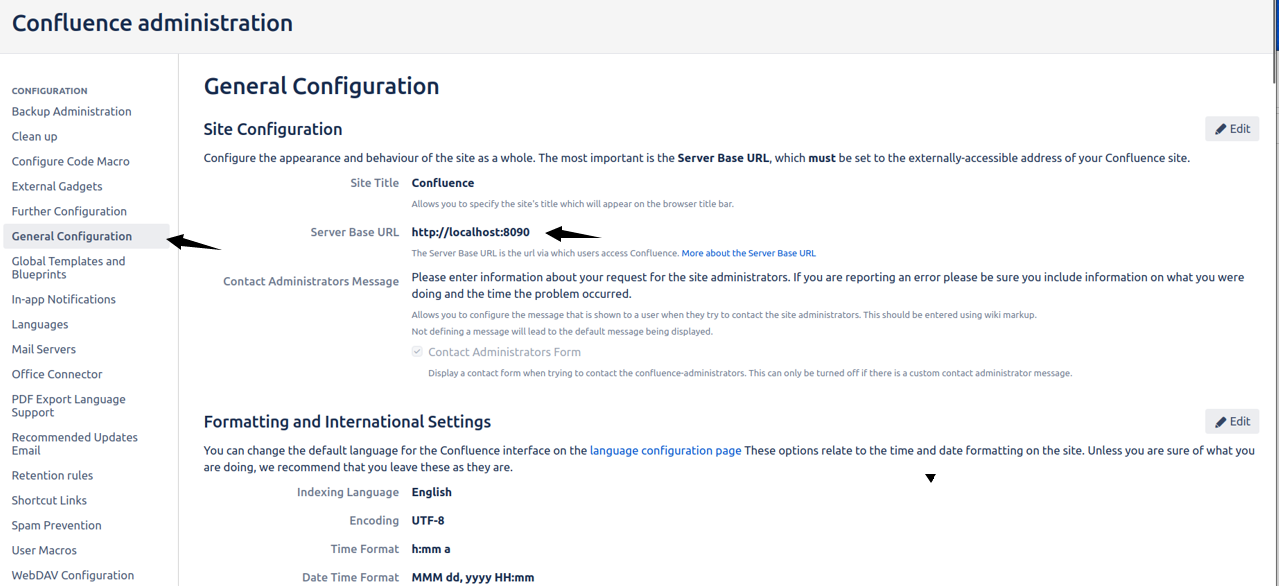
- Casdoor can be logged in and used normally.
- For local
prodmode, setCASDOOR_HOSTNAMEtohttp://localhost:8000. See production mode.
Step 2: Configure Casdoor application
- Create a new Casdoor application or use an existing one.
- Find a redirect URL:

- Add the redirect URL to the application:
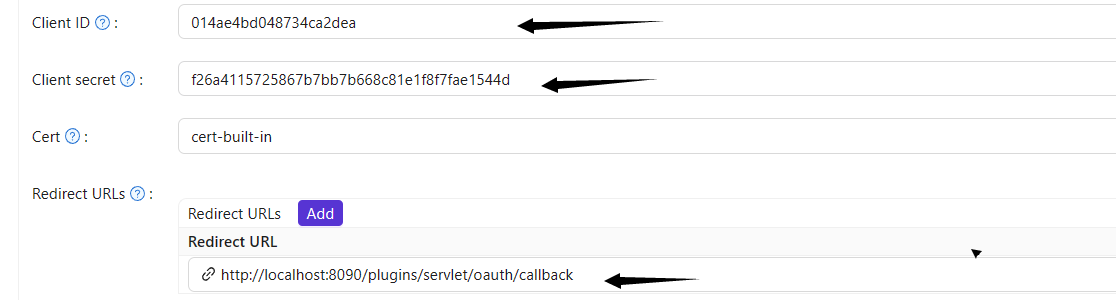
- Add the desired provider and configure other settings accordingly.
Note Client ID and Client Secret for the next step. OIDC discovery: http://<CASDOOR_HOSTNAME>/.well-known/openid-configuration.
Step 3: Configure Confluence
- Install the miniOrange OAuth app. In Confluence:
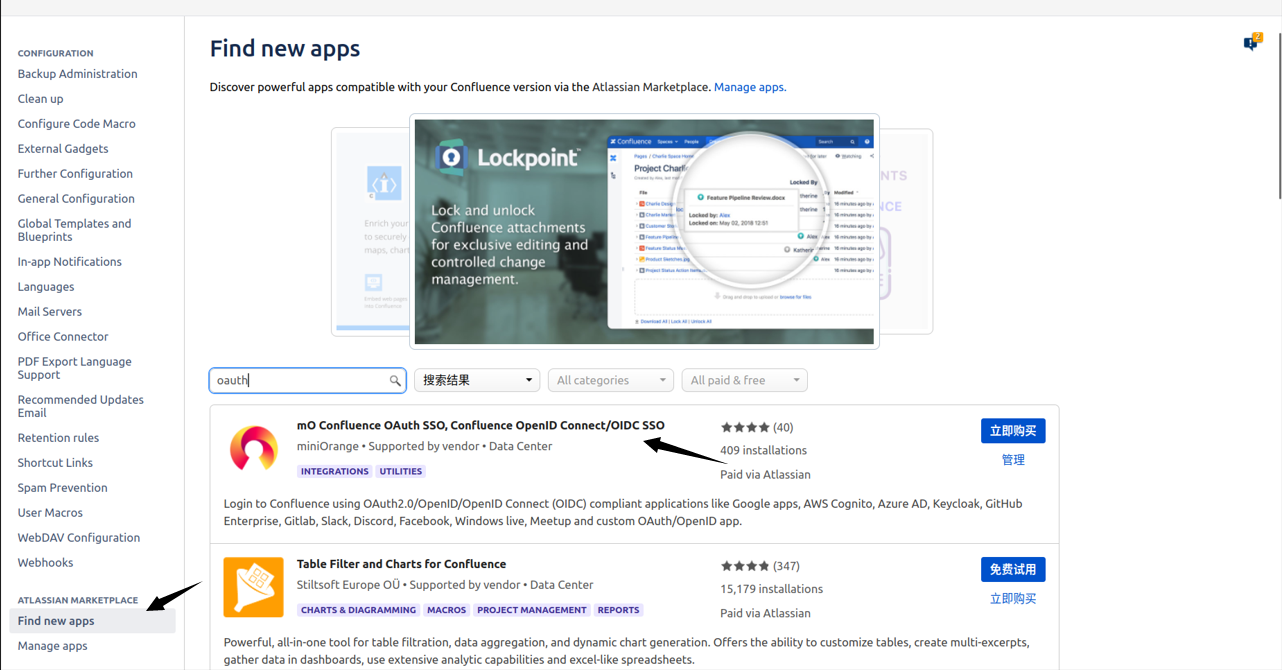
- Configure the app:
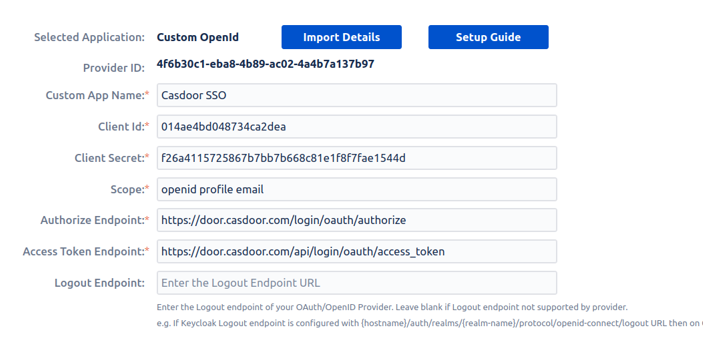
- Set
Selected Applicationto Custom OpenID. - Retrieve the Client ID and Client Secret from the Casdoor application page.
Configure the following settings for Confluence:
Token server URL: http://CASDOOR_HOSTNAME/api/login/oauth/access_tokenAuthorization server URL: http://CASDOOR_HOSTNAME/login/oauth/authorizeUserInfo server URL: http://CASDOOR_HOSTNAME/api/get-accountScopes:address phone openid profile offline_access email
Configure advanced authorization later if needed; first verify that OpenID sign-in works.
Log out of Confluence and test SSO: