Vue d'ensemble
User properties
Casdoor manages user accounts. Each user has the following properties:
Owner: L'organisation propriétaire de l'utilisateurName: The unique username for the user (must be unique within the organization)CreatedTime: Timestamp when the user account was createdUpdatedTime: Timestamp when the user account was last updatedId: Unique identifier (UUID) for each userType: The type of user account (e.g., normal-user, guest-user)Password: The user's encrypted passwordPasswordSalt: Salt value used for password hashingPasswordOptions: Options de complexité du mot de passeDisplayName: The user's display name shown in the user interfaceFirstName: The user's first name (given name)LastName: The user's last name (family name)Avatar: URL or link to the user's current avatar imagePermanentAvatar: URL to the user's permanently stored avatar (not affected by provider changes)Email: The user's email address (automatically normalized to lowercase)Phone: The user's phone numberLocation: The user's geographical locationAddress: An array of strings containing the user's address information (e.g., street address, city, state, postal code)Affiliation: The user's organization or institutional affiliationTitle: The user's professional title or job positionIdCardType: The type of ID card used for identity verification (e.g., passport, driver's license)IdCard: The ID card number (becomes read-only after verification)RealName: The user's verified real name (becomes read-only after identity verification)IsVerified: Indicates whether the user has completed identity verification through an ID Verification providerHomepage: URL to the user's personal homepage or websiteBio: A short biography or description of the userTag: Tags for categorizing users (can be multiple tags separated by commas)Region: The user's geographical region or areaLanguage: The user's preferred language for the interfaceGender: The user's genderBirthday: The user's date of birthEducation: The user's education level or backgroundBalance: The user's account balance (for applications with payment features)Score: Numerical score associated with the user (application-defined)Karma: Karma or reputation points for the userRanking: The user's ranking position (application-defined)IsDefaultAvatar: Indicates whether the user is using the default avatarIsOnline: Indicates whether the user is currently onlineIsAdmin: Indicates whether the user is an administrator of their organizationIsGlobalAdmin: Indicates whether the user has permission to manage CasdoorIsForbidden: Indicates whether the user account has been banned or restrictedIsDeleted: When a user is soft-deleted (IsDeleted = true), they cannot sign in through any authentication method, including OAuth providers. This prevents deleted users from re-registering via third-party login.SignupApplication: The application through which the user signed upHash: Hash value used for internal authentication mechanismsPreHash: Previous hash value (used during password migration)CreatedIp: The IP address from which the user account was createdLastSigninTime: Timestamp of the user's last sign-inLastSigninIp: The IP address from the user's last sign-inRoles: An array of the user's roles (extended field, read-only via User API)Permissions: An array of the user's permissions (extended field, read-only via User API)
Identifiants uniques pour les connexions aux plateformes sociales :
Github: User's unique identifier from GitHub OAuth loginGoogle: User's unique identifier from Google OAuth loginQQ: User's unique identifier from QQ OAuth loginWeChat: User's unique identifier from WeChat OAuth loginFacebook: User's unique identifier from Facebook OAuth loginDingTalk: User's unique identifier from DingTalk OAuth loginWeibo: User's unique identifier from Weibo OAuth loginGitee: User's unique identifier from Gitee OAuth loginLinkedIn: User's unique identifier from LinkedIn OAuth loginWecom: User's unique identifier from WeCom (WeChat Work) OAuth loginLark: User's unique identifier from Lark (Feishu) OAuth loginGitlab: User's unique identifier from GitLab OAuth loginAdfs: User's unique identifier from ADFS authenticationBaidu: User's unique identifier from Baidu OAuth loginCasdoor: User's unique identifier from another Casdoor instance OAuth loginInfoflow: User's unique identifier from Infoflow OAuth loginApple: User's unique identifier from Apple OAuth loginAzure AD: User's unique identifier from Azure Active Directory OAuth loginAzure AD B2C: User's unique identifier from Azure AD B2C OAuth loginSlack: User's unique identifier from Slack OAuth loginSteam: User's unique identifier from Steam OAuth loginLdap: User's unique identifier from LDAP authentication
Organization admin privileges
Users with IsAdmin enabled are administrators of their organization:
- Full access to manage users, applications, and resources within their organization
- Access to verification code records sent to users in their organization
- Ability to configure organization-level settings and policies
Organization admins have elevated permissions but are scoped to their organization only. Global admins (built-in organization users) have full access across all organizations in the Casdoor instance.
User tags
The Tag field categorizes users. Use a single tag or several comma-separated tags (e.g. "developer,qa,reviewer"). Application access checks evaluate each tag separately.
Reserved tag values:
normal-user: Standard users with full authentication capabilitiesguest-user: Temporary users created through guest authentication without initial credentials- Automatically upgrade to
normal-userwhen they set a proper username or password - Cannot sign in directly until they upgrade their account
- Automatically upgrade to
Custom tags can restrict application access. See Application Tags.
Identity verification
Casdoor supports identity verification via ID Verification providers. Users can verify their identity by submitting their ID card information and real name, which gets validated through third-party services like Jumio.
When a user completes identity verification:
- The
IsVerifiedfield is set totrue - The
RealName,IdCardType,IdCard, and related identity fields become read-only - The verified status is included in JWT tokens and OIDC userinfo responses
- A verification badge appears on the user's profile
This feature is useful for applications that require KYC (Know Your Customer) compliance or need to ensure user identity authenticity. See ID Verification Providers for more information on configuring identity verification.
Email normalization
Casdoor normalizes all email addresses to lowercase for uniqueness and to avoid duplicate accounts. This means that user@example.com, User@Example.com, and USER@EXAMPLE.COM are treated as the same email address, complying with RFC 5321 standards.
This normalization happens automatically during:
- User signup and account creation
- User login and authentication
- Email duplicate checking
Roles and permissions (extended fields)
The Roles and Permissions fields on the User object are extended: they are filled when user data is fetched, not stored on the User table. They are built from the Roles and Permissions resources via ExtendUserWithRolesAndPermissions().
Important: You cannot change roles or permissions with /api/update-user (including via the columns parameter). Use the Roles and Permissions APIs and their management pages (e.g. Roles and Permissions in the sidebar) to assign and manage them.
Using the Properties field
The Properties field is a key-value map (map[string]string) for custom user attributes not covered by the built-in schema. Use it to:
- Store organization-specific user attributes
- Add custom metadata that doesn't fit into standard fields
- Extend user profiles without modifying the core schema
Importing users from XLSX
Add or update users by uploading an XLSX file.
Getting started
On the Users page in the admin console you’ll see:
- Download template: Generates an XLSX template with all available user fields and their localized column headers
- Upload (.xlsx): Opens the upload dialog to import users from your XLSX file
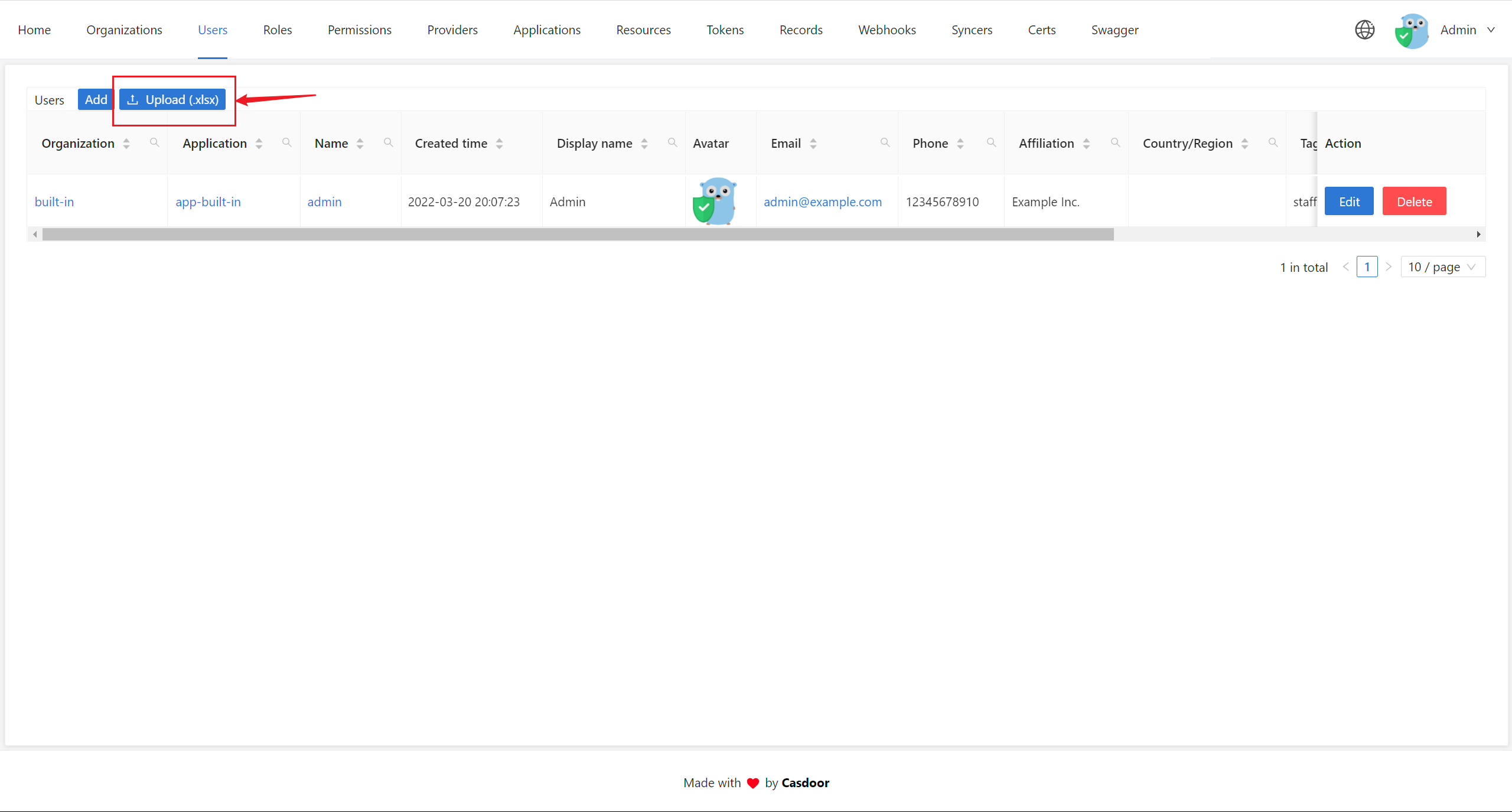
The template file includes headers in the format Display Name#field_name (e.g., Organization#owner), where the display name is localized to your language and the field name after # is used for import mapping. The comment prefix (everything before #) is automatically removed during import.
Upload process
After you choose an XLSX file, Casdoor shows a preview of the data. Review it and confirm to start the import. A sample file (xlsx/user_test.xlsx) with 5 test users is available for reference.
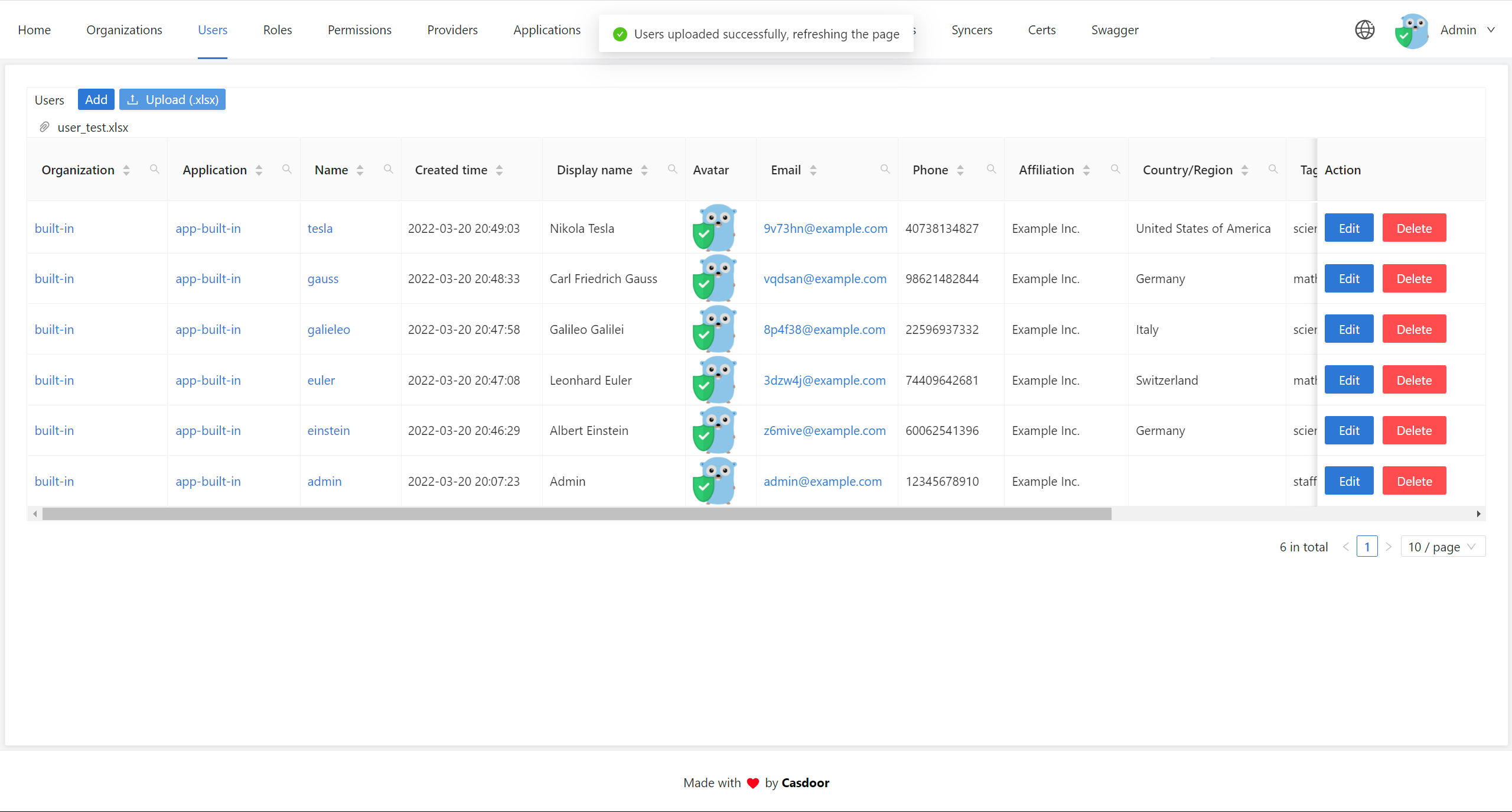
Upload permissions
Who can upload depends on your role:
- Global admins (users in the
built-inorganization withIsGlobalAdminset to true) can upload users to any organization. The target organization is determined by theOwnerfield in the XLSX file. - Organization admins (users with
IsAdminset to true) can only upload users to their own organization. The system ensures that duplicate checking and user creation are scoped to the correct organization.
Bypassing password encryption on import
When migrating users from another system, you may need to preserve existing password hashes instead of re-hashing with the organization’s default password type. Use the passwordType field during user import to tell Casdoor the format of the stored password.
Example: bcrypt password Example POST body for /api/add-user:
{
  "owner": "organization",
    "signupApplication": "first-app",
    "email":"dev@dev.com",
    "name": "dev",
    "displayName": "developper",
    "password": "$2a$10$.o/iVyDE9Xk8ioywHDnQRu72RviOi6FPa1ujhusbSCZeg7VOa6MY6",
    "passwordType":"bcrypt",
}
The password is already bcrypt-hashed, so passwordType is set to "bcrypt" so Casdoor does not hash it again.