LDAP configuration and sync
LDAP is configured per organization; synced users are created in that organization. Use a global admin to edit LDAP settings on the organization page.

Connecting to the LDAP server
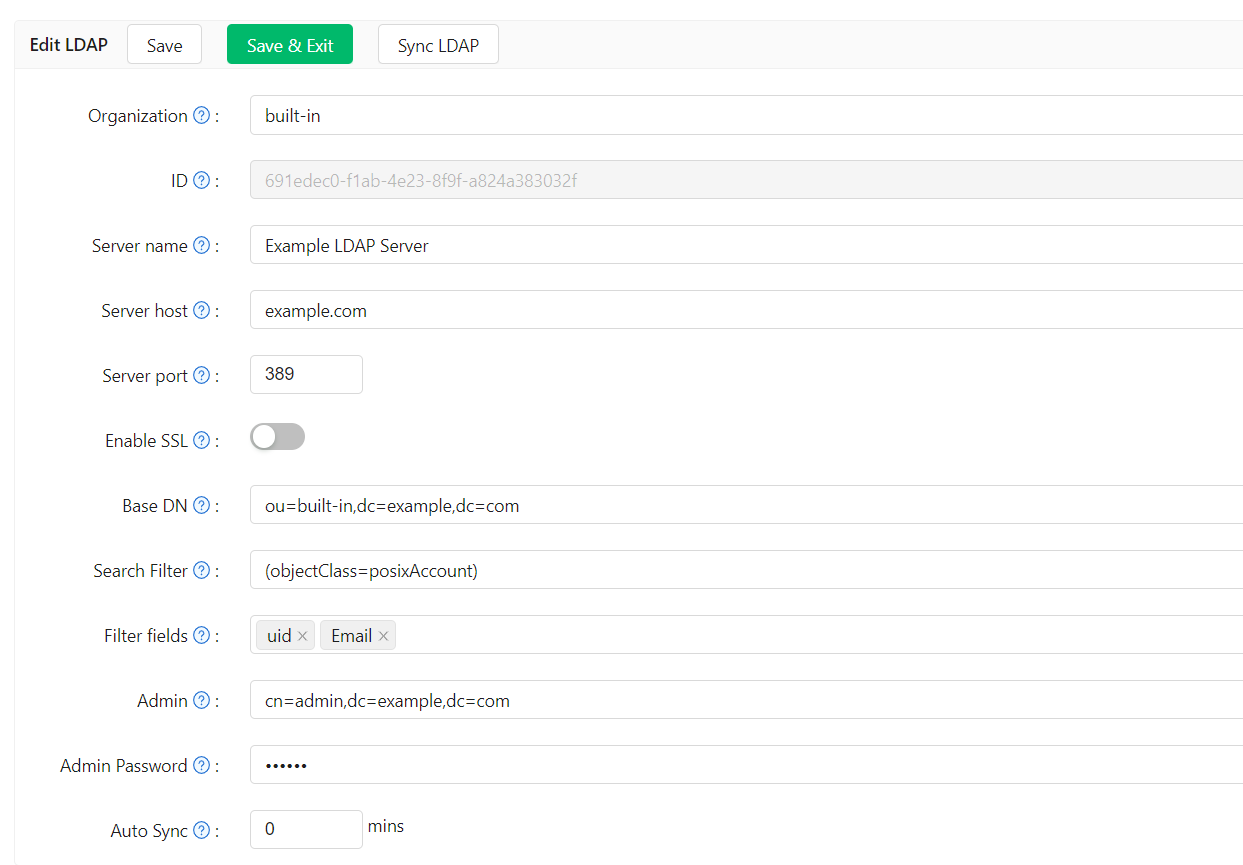
| Field | Description |
|---|---|
| Server name | Friendly name for this server (e.g. Example LDAP Server). |
| Server host | Host or IP of the LDAP server (e.g. example.com). |
| Server port | Port number, numeric only (e.g. 389). |
| Base DN | Base distinguished name for search. Casdoor uses subtree search and returns all users under this DN. The admin account must have at least read access at this base (e.g. ou=Example,dc=example,dc=com). |
| Search filter | LDAP filter for user search (e.g. (objectClass=posixAccount)). If the filter contains {} (a placeholder used by some LDAP configurations, e.g. (uid={})), Casdoor replaces it with * when listing users, treating it as a wildcard. |
| Filter fields | LDAP attributes used to identify the user (e.g. uid, mail, mobile). The value entered at Casdoor login is matched against these; typically uid is used as the login name. |
| Admin | Bind DN or ID for the LDAP admin (depends on server; e.g. cn=manager,dc=example,dc=com). |
| Admin password | Password for the admin account. |
| Auto sync | 0 = disabled. Any other value = sync interval in minutes. |
| Enable groups | When enabled, Casdoor syncs LDAP groups and OUs as Casdoor groups and assigns users to them. |
Syncing users
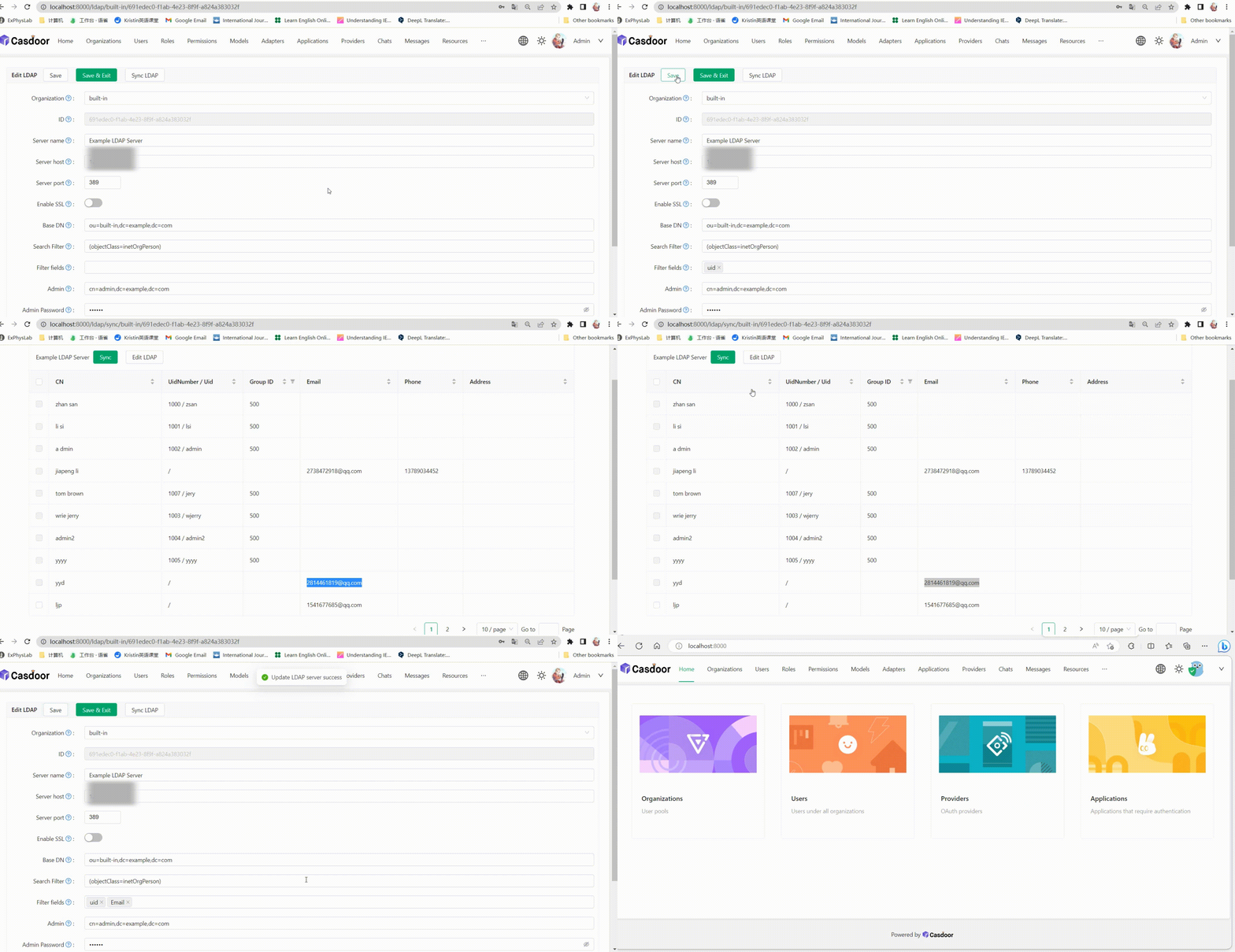
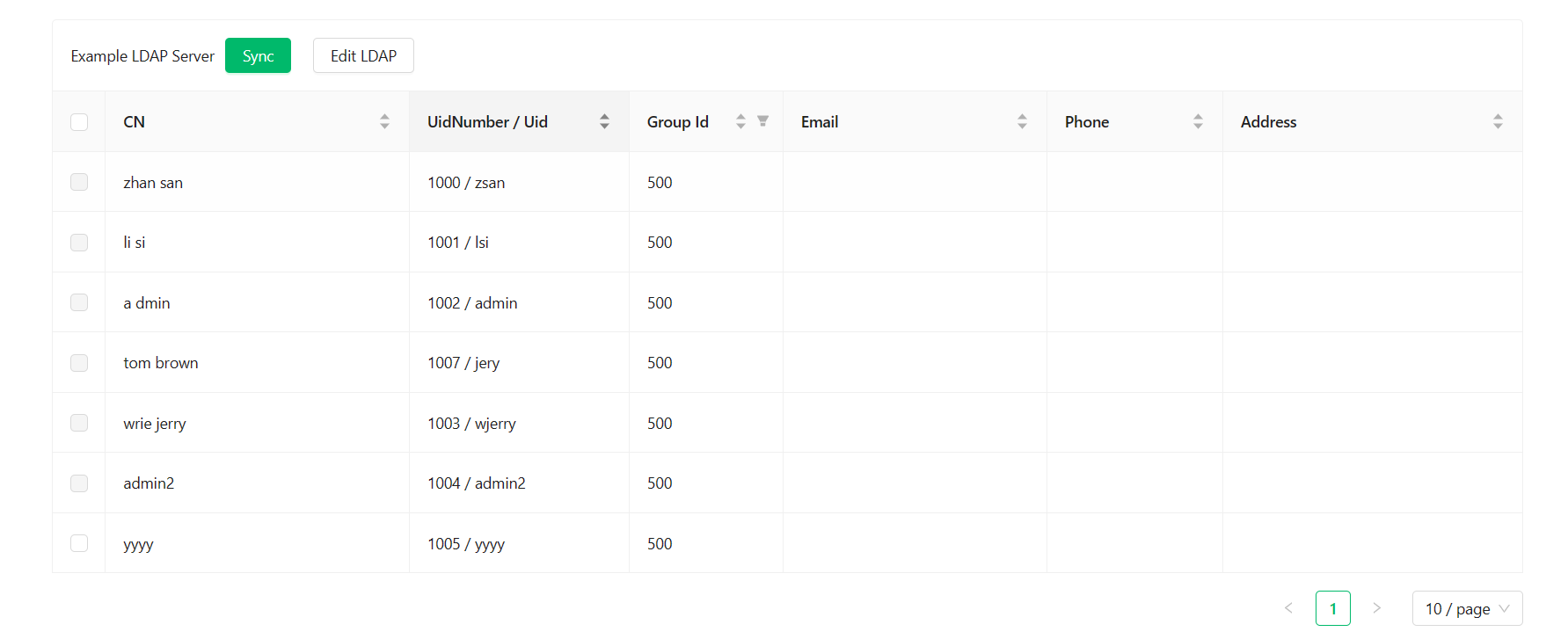
The sync table lists users under the configured base DN. Already-synced users are shown with the checkbox disabled. Select users and sync to import them into the organization.
Group and OU sync
When Enable groups is turned on, Casdoor queries the LDAP directory for group objects before syncing users. It searches the base DN for entries with any of the following object classes: groupOfNames, groupOfUniqueNames, posixGroup, and (for Active Directory) group. Each matching entry is created as a Casdoor group. Users are then assigned to the groups their memberOf attribute lists.
Group sync runs before user sync in each auto-sync cycle so that groups exist before user membership is evaluated. If a group lookup fails, the error is logged and the rest of the sync continues.
LDAP server attribute filtering
By default, Casdoor's built-in LDAP server exposes all standard attributes for each user entry. You can restrict which attributes are returned by setting LDAP attributes on the organization edit page.
When the list is non-empty, only the selected attributes are included in search result entries. The available attributes are:
uid, cn, mail, email, mobile, displayName, givenName, sn, uidNumber, gidNumber, homeDirectory, loginShell, gecos, sshPublicKey, memberOf, title, userPassword, c, co
Leave the list empty to return all attributes (default behavior).
Default group
Group to assign to users after sync.
If an LDAP user’s uid equals the name of an existing user in the organization, Casdoor creates a new user with a modified name (uid + random suffix). That user may not be able to sign in via LDAP because the LDAP server has no such uid. Avoid reusing existing Casdoor usernames as LDAP uids.
Phone number normalization
When users are synced from LDAP, Casdoor normalizes the imported phone number using libphonenumber. If the LDAP entry includes a country code (via the CountryCode attribute), it is used as the region hint to parse the number. Country names such as "China" are resolved to their two-letter ISO codes ("CN") automatically; values that are not valid ISO codes are ignored.
After parsing, the phone is stored as the national-format digits only (without country prefix or formatting characters). Numbers that fail to parse or are invalid are stored as-is.